SpotMenus now allows you to re-arrange text menu groups as well as items inside of a SpotMenus Text Menu! This will allow you to easily update text menus as you add groups (sections) and add/update items inside groups.
- Login to SpotMenus using your email and password
- Click on the location you wish to manage

- Click "Menu Manager"

- Locate the text menu you wish to edit from the Menu Library and click "Edit"

- Select "Manage Text Menu Items"

Reorder Text Menu Groups (Sections)
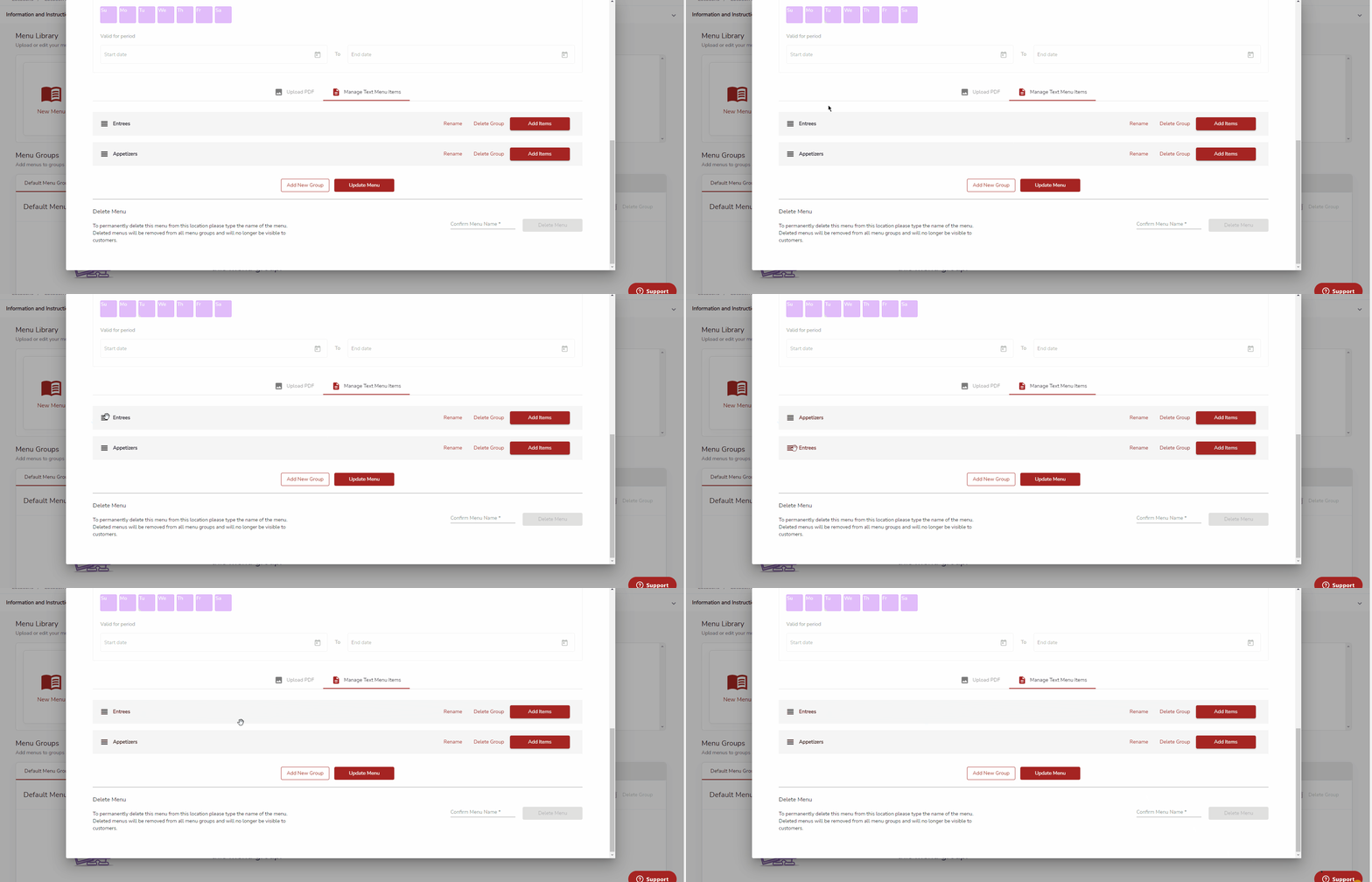
- Locate the text menu groups you may wish to adjust the order of

- Use your mouse to drag and drop the text menu groups in the order you want them displayed to the user when they scan your QR code.
- Note: Items at the top appear first
Reorder Text Menu Items
You can also rearrange items inside of a text menu group following the same steps!
- Select "Edit Items" for the group you wish to edit the order of
- In this example we will click "Edit Items" in the "Appetizers" group/section.

- To adjust the display order simply drag and drop the items in the order you wish them to be displayed.
- Note: Items at the top will display first.
- When complete click "Save Group Details"
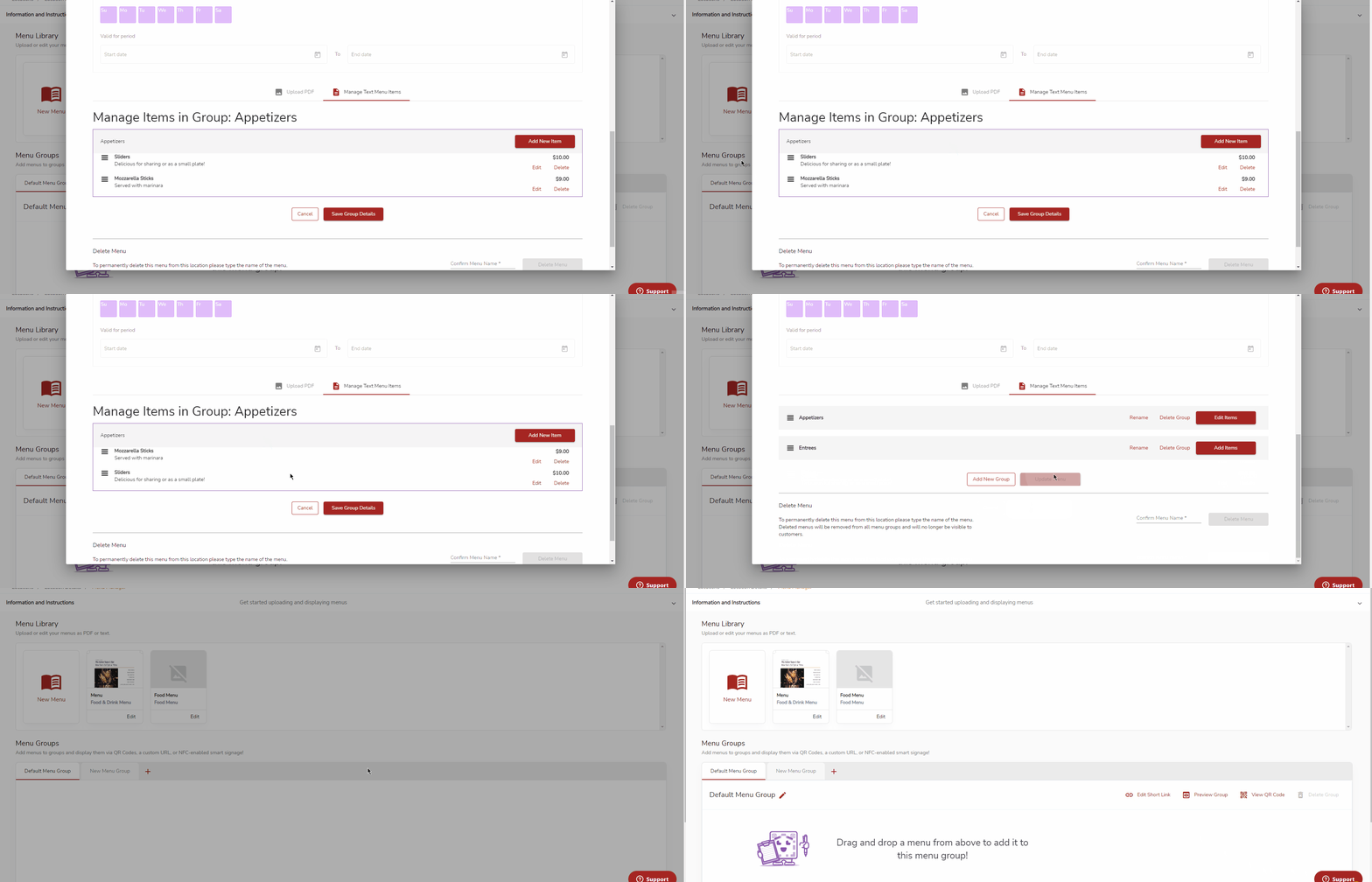
- Once complete click "Update Menu" to save your changes
- If you want your menu to display when a customer scans your QR code be sure to add your menu to a menu group!